HEPLANO SeniorLarge Home Screen for Android: Make Everything Easier to Read

Large Home Screen for Android: Make Everything Easier to Read

If text and icons are too small, the display setting of Android helps first. If that is not enough, a home screen with big tiles replaces the many small icons.

Last updated 26.10.2026

Short answer

In the Android settings under “Display”, increase the text size. For big, simple tiles instead of many small icons, install a home screen such as HEPLANO Senior.

Step 1: The Android settings

  • Open the settings (the gear of Android).
  • Choose “Display”. On some phones this area is called “Screen”.
  • Make the “Font size” larger. On Samsung phones the entry is called “Font size and style”.
  • If available, increase “Display size” or “Screen zoom”.

The names differ by maker and Android version.

Step 2: Big tiles with HEPLANO Senior

The app shows five fixed and up to three free tiles. The text comes in four sizes: Normal, Large, Very large and Extra large. With “Normal” and “Large”, all tiles fit on the screen. With “Very large” and “Extra large”, a button “Scroll down” leads to the other tiles. It only appears when you have not swiped for two seconds.

Step 3: Contrast and appearance

In the settings you can choose a light, a dark and a high-contrast appearance. For poor eyesight, high contrast is often the easiest to read.

Good to know

  • You can change the text size at any time: tap the clock five times, “Yes, change”, “Text size”.
  • The status bar at the top with reception and battery stays the one from Android. HEPLANO does not change it.
  • The texts are written in plain language.
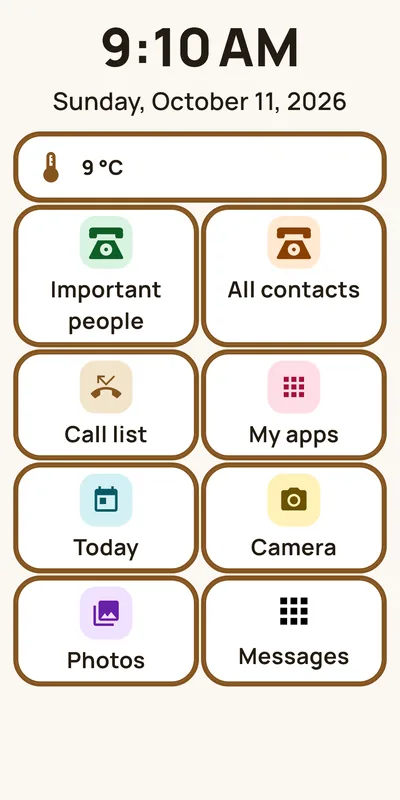
What HEPLANO Senior looks like

  • HEPLANO Senior: Big tiles instead of tiny icons
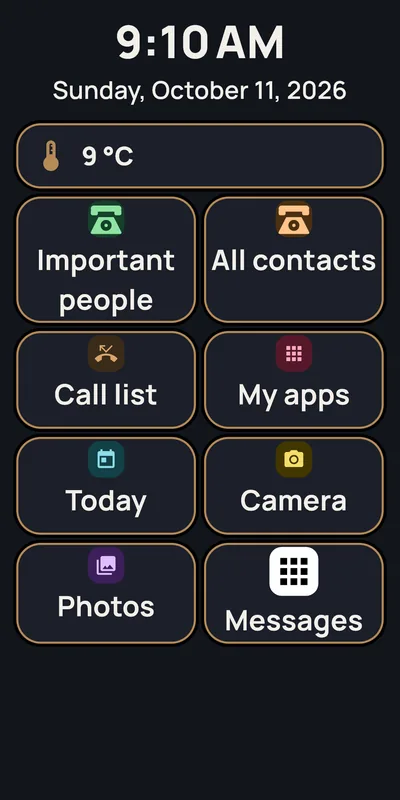
    Big tiles instead of tiny iconsThe home screen: time, date, weather and eight big tiles. Five are fixed, three can be filled freely, here with camera, photos and a messaging app.
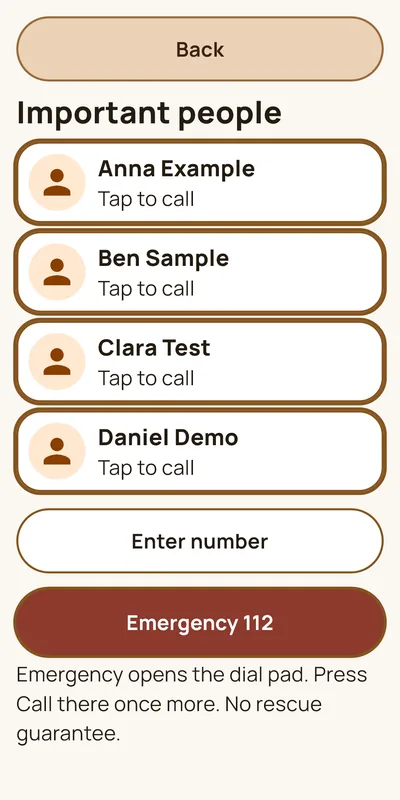
  • HEPLANO Senior: Call important people with one tap
    Call important people with one tapUp to six people you call without searching. Below are “Enter number” and the emergency button, which opens the dial pad.
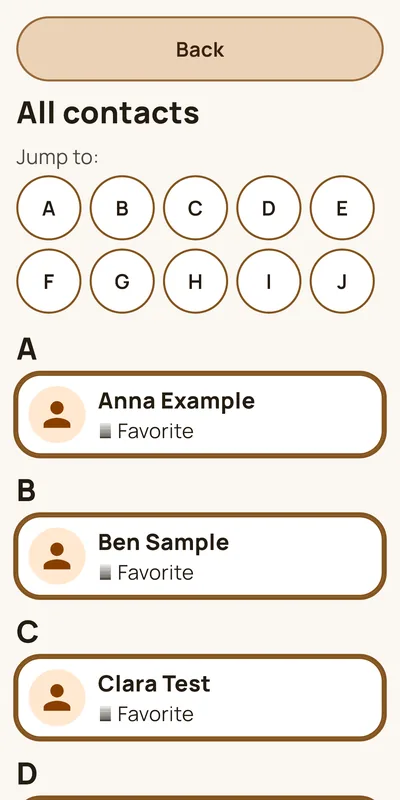
  • HEPLANO Senior: All contacts, big and clear
    All contacts, big and clearAll contacts of the phone with big names. With the letters at the top, you jump straight to the right initial.
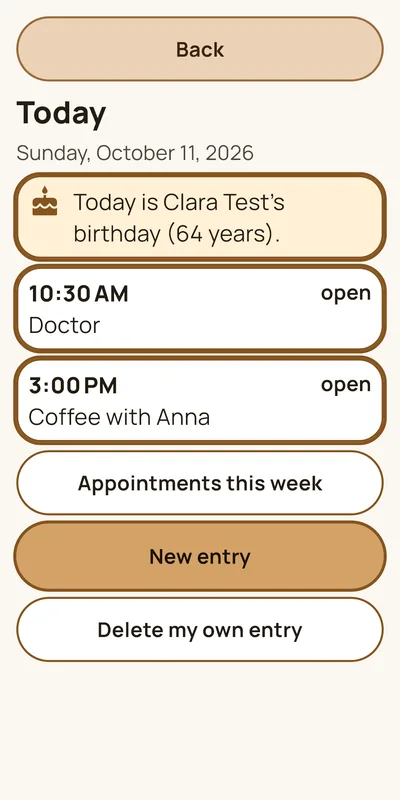
  • HEPLANO Senior: Today: appointments and birthdays
    Today: appointments and birthdaysThe day’s appointments from the calendar, the birthday of a contact and your own reminders. A tap marks an entry as done.
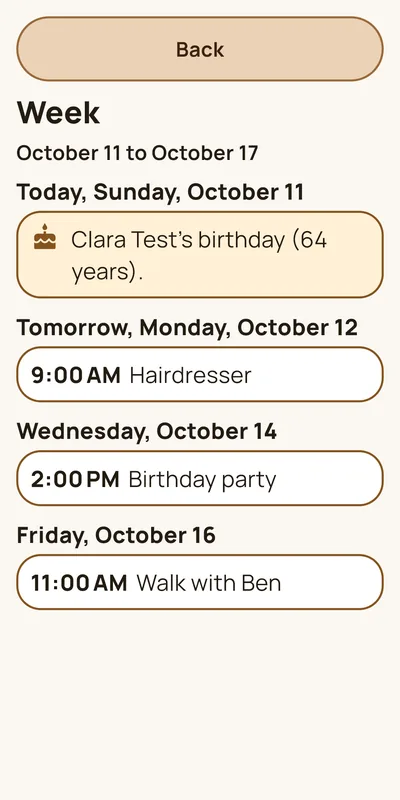
  • HEPLANO Senior: The week at a glance
    The week at a glanceThe next seven days with appointments and birthdays, each day with a heading. “Next week” pages on.
  • HEPLANO Senior: The weather, simply explained
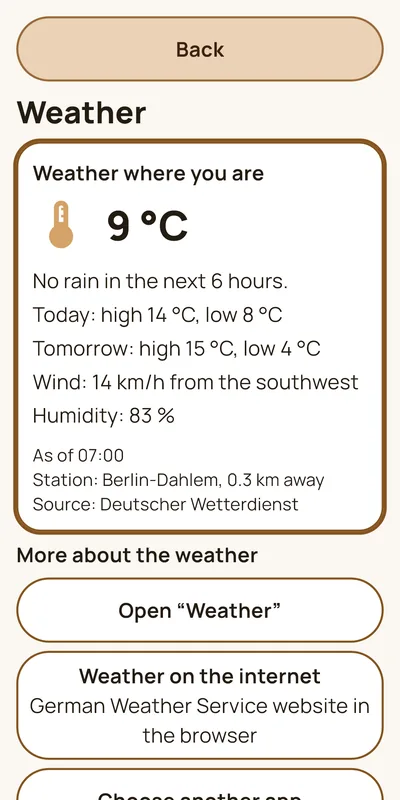
    The weather, simply explainedTemperature, wind, humidity, the high and low for today and tomorrow and a note whether it rains. Data from the German Weather Service.
  • HEPLANO Senior: Large text, dark mode
    Large text, dark modeThe text comes in four sizes, the appearance light, dark or high contrast. With large text, the tiles grow and the arrangement stays the same.
  • HEPLANO Senior: Relatives set it all up
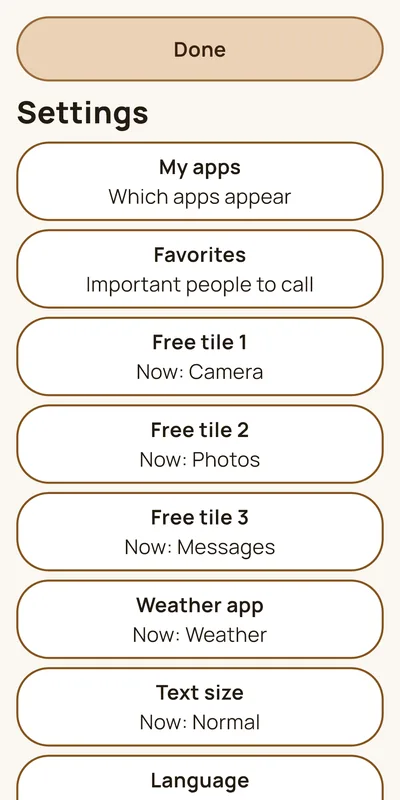
    Relatives set it all upThe settings are protected by five taps on the clock. Here relatives choose apps, favorites, free tiles, text size and language.

Common questions about large text

How large does the text get?

In four sizes: Normal, Large, Very large and Extra large.

Can I change the text size later?

Yes. Tap the clock five times, choose “Yes, change” and open “Text size”.

Does this work on every Android phone?

HEPLANO Senior needs Android 8 or newer and Google Play.