Short answer
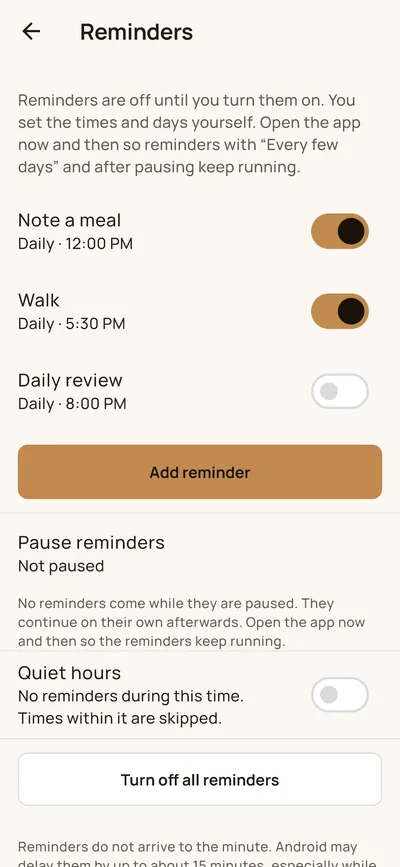
Open “Settings” and “Reminders”, tap “Add reminder”, choose the type, set time and rhythm, turn on “Turned on” and tap “Save”. Android may delay reminders by up to about 15 minutes. Two simple daily reminders are free; several times, certain weekdays, every few days, monthly, pausing, quiet hours and free reminders are part of Premium.
Creating a reminder
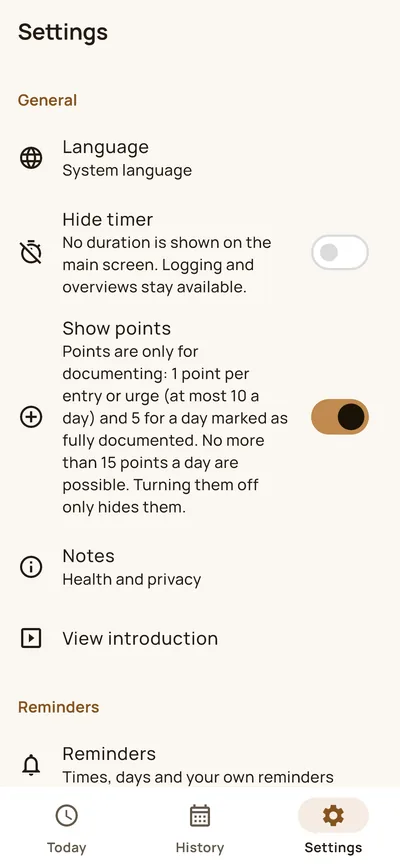
- Settings, then Reminders, then “Add reminder”.
- Choose the type: note a meal, daily review, close the day, review of a month or year, or your own reminder.
- Set one or more times. Tap a time to change it.
- Choose the rhythm: daily, on certain weekdays, every few days or monthly.
- Turn on “Turned on” and tap “Save”. Turning on only applies with “Save”. The first time, Android asks for permission to show notifications.
Your own reminder
With “Your own reminder” you create a reminder with its own name, for example “Walk”. The name is required and is also the text of the notification. Tapping the notification only opens the app.
Pausing and quiet hours
With “Pause reminders” you set until which day no reminder comes. With quiet hours, for example 22:00 to 07:00, times in this window are skipped.
Good to know
- The texts are neutral and never contain data from your diary. A notification can appear on the lock screen; so do not write anything private in the name of your own reminder.
- Reminders do not arrive to the minute. Android may delay them by up to about 15 minutes, especially while the screen is off.
- Open the app now and then so that reminders with “Every few days” and after pausing keep running.
More about the app: HEPLANO Rhythm.