What is HEPLANO Senior?
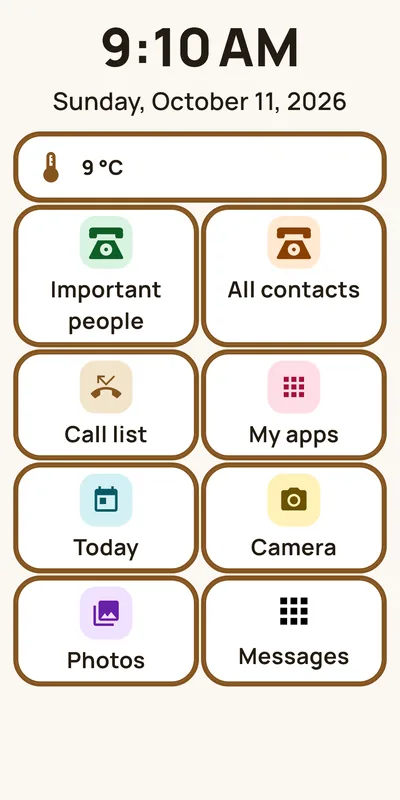
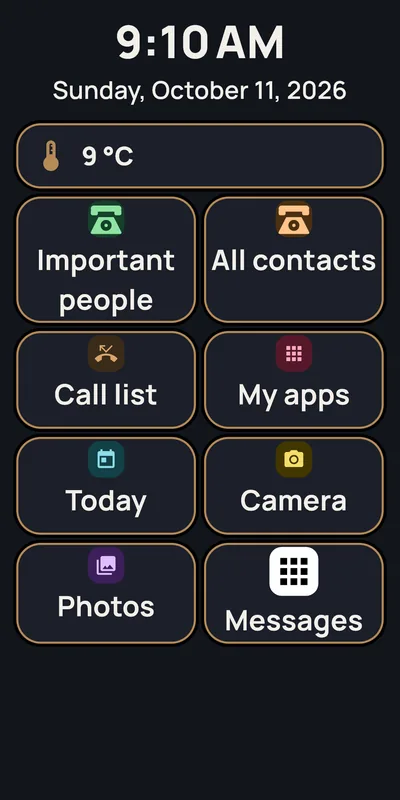
A simple home screen for Android phones. It shows the time, the date, the weather and large tiles. Five tiles are fixed: Important people, All contacts, Call list, My apps and Today. Up to three free tiles come on top, which you fill yourself.
Who is HEPLANO for?
For people who want to use a phone without much effort, and for relatives who set it up for them.
What does HEPLANO cost?
The app is free to install. You can try it for 14 days with all features. After that, buying costs 19.99 € once (no subscription; Google Play shows the price). Buying is optional. What applies after the 14 days is under “What happens after the 14 days if I do not buy?”.
Which phone do I need?
An Android phone with Android 8 or newer and Google Play.
In which languages is HEPLANO available?
German, English and Polish. You choose the language during setup or later in the settings.
Does HEPLANO collect my data?
Your contacts, appointments and entries stay on the phone. HEPLANO has no ads and no analytics. Only for the weather HEPLANO fetches data from the German Weather Service, and Google Play is used for the purchase. The privacy policy explains it in detail.
How do I set HEPLANO up?
When you open it the first time, the app leads you through 7 steps: 1 Language, 2 Text and colors, 3 Set home screen, 4 Buttons at the bottom, 5 Important contacts, 6 My apps (with the three free tiles and the weather app) and 7 All set. You can change everything later in the settings.
How do I make HEPLANO the home screen?
The app asks for it during setup. • Android 10 and newer: Android shows a question. Choose “HEPLANO Senior” and confirm. • Android 8 and 9: Open the settings of the phone. Go to “Apps” (or “Apps and notifications”), then “Default apps” (on some phones under “Advanced”) and choose “HEPLANO Senior” under “Home screen”. The names of the entries differ by maker. • If the app cannot set the home screen itself, it shows the way and a button that opens the Android setting.
The test period has not started. Why?
The 14 days only start when HEPLANO is your home screen and the setup is finished.
How do I go back to my previous home screen?
• In the purchase dialog after the test period there is a button “Back to my previous home screen”. It asks once more and then opens the Android setting. There you choose the other home screen. • In the settings under “For relatives” there is the row “Default home screen”, which opens the same Android setting. • If you uninstall HEPLANO, Android uses the previous home screen again by itself.
How do I call someone?
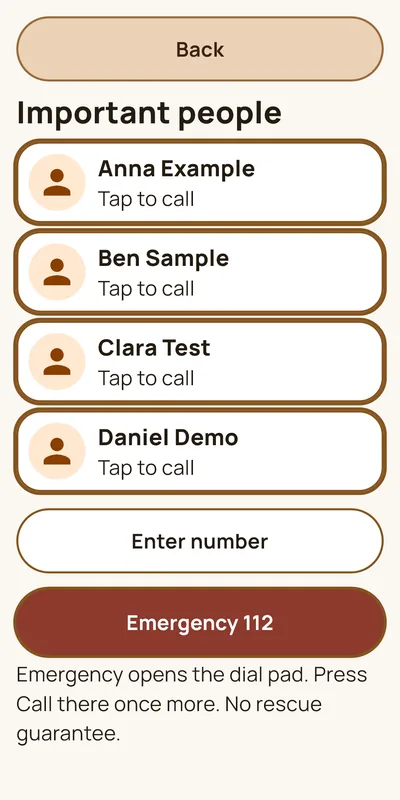
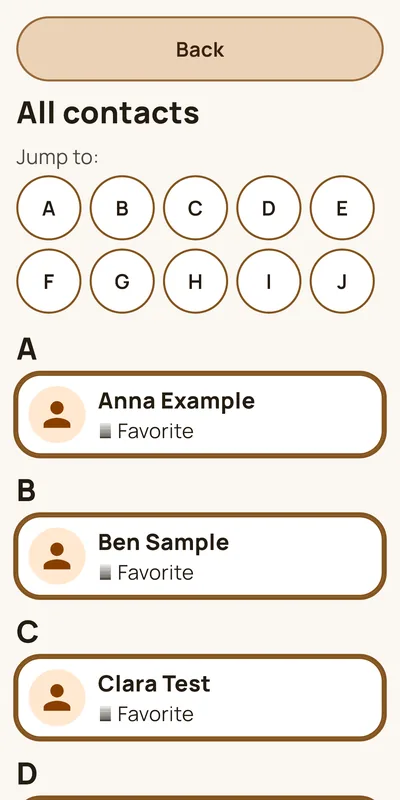
Tap “Important people” and then the name. The phone dials the number. “All contacts” shows all contacts in a list with big names. There you tap a name and then “Call”.
How do I choose “Important people”?
You do this in the setup (step 5) or later in the settings (see section 5) under “Favorites”. You can choose up to 6 people. Each person has exactly one number.
Where are SMS, WhatsApp, camera and photos?
On the three free tiles at the end. Everyone puts there what they need: WhatsApp, SMS, Signal, the camera, the photos or another app. The tile then shows the name and the symbol of that app. If you do not need a tile, choose “None”, and it does not appear. At the first start, camera and photos are preselected. Relatives make the choice in the setup (step 6) or later in the settings under “Free tile 1”, “Free tile 2” and “Free tile 3”.
What happens if the app of a free tile is deleted?
The tile stays visible and is called “Free tile”. A tap on it says that the app is gone and offers “Choose another app”.
What does the “Call list” tile show?
It opens the call list of the phone, which also shows missed calls. With the optional access to notifications it shows a number and blinks.
What does “Today” show?
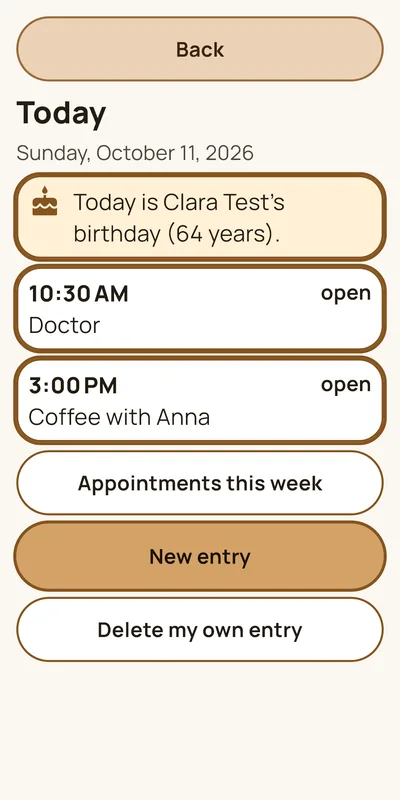
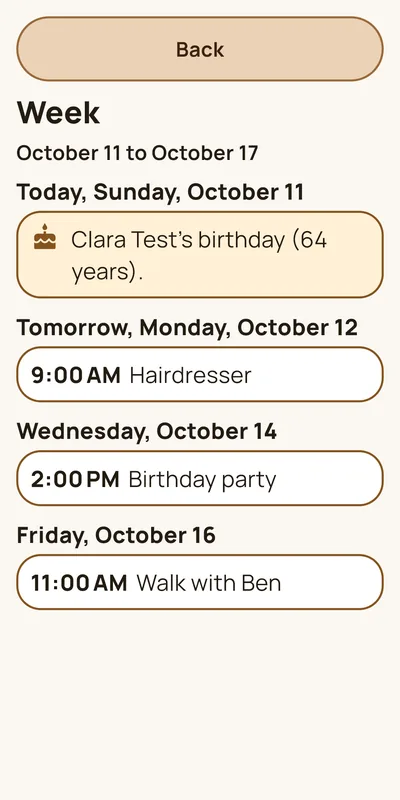
Today’s appointments from the calendar of the phone, the birthdays of your contacts and your own entries, for example “Take tablets”. A tap on a row marks it as done. With “New entry” you add an own entry (up to 20): “Today only” or “Every day”. “Appointments this week” shows the next seven days and lets you page on into the following weeks. HEPLANO changes nothing in the calendar.
How do I see missed calls and new messages?
The “Call list” tile and every free tile with a messaging app such as WhatsApp then show a number and blink. This is optional: under “For relatives” and “Alerts on the tiles” you find how to switch on access to notifications in Android. HEPLANO only counts and never reads what a notification says. The number disappears as soon as you have looked at the message or call. Without the access, the tiles stay without a number.
Where do I see birthdays?
Under “Today” and in the week view. If you allowed access to contacts and a birthday is entered for the contact, it says “Today is … birthday” and the day before “Tomorrow is … birthday”. In the week view the birthday stands on its day. You enter it in the Android Contacts app: open the contact, “Edit”, “Show more”, add “Event” or “Birthday”. The steps are also in the guide under “For relatives”.
What is “My apps”?
A list of the apps you have chosen, so that only the important apps are visible.
Where does the weather come from?
From the German Weather Service (the source is shown on the weather page). HEPLANO looks for the nearest measuring station. This works in and around Germany. In other countries there is no weather; a note appears.
Why does HEPLANO ask for the location?
Only so that HEPLANO finds the nearest measuring station. The location (approximate only) stays on the phone. Only the ID of the station is sent to the German Weather Service. The question is optional. Without the location HEPLANO shows no weather. The weather app of your phone and the weather page in the browser stay available.
What does the weather page show?
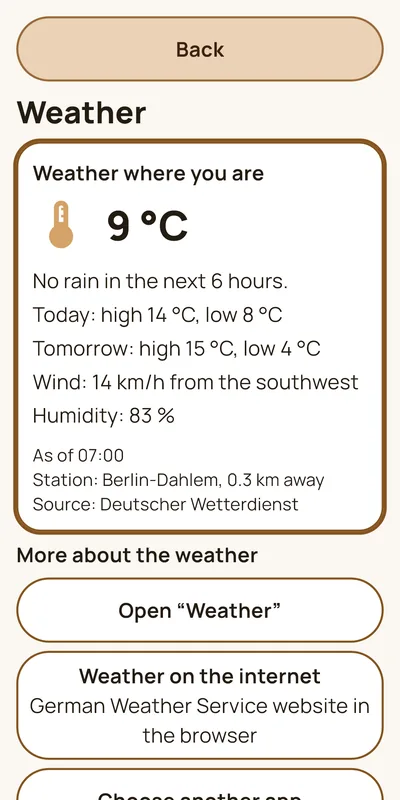
Temperature, weather (as far as the station supplies it), wind, humidity, the high and low for today and tomorrow and a note whether it will rain in the next 6 hours. A forecast is only an estimate and can be wrong.
Why is there no weather?
• The location is not allowed: tap “Allow location”. • The location is switched off on the phone: switch it on in the phone settings. • There is no internet: check the connection and tap “Try again”. • There is no measuring station nearby, for example abroad: a note appears.
How do I open the settings?
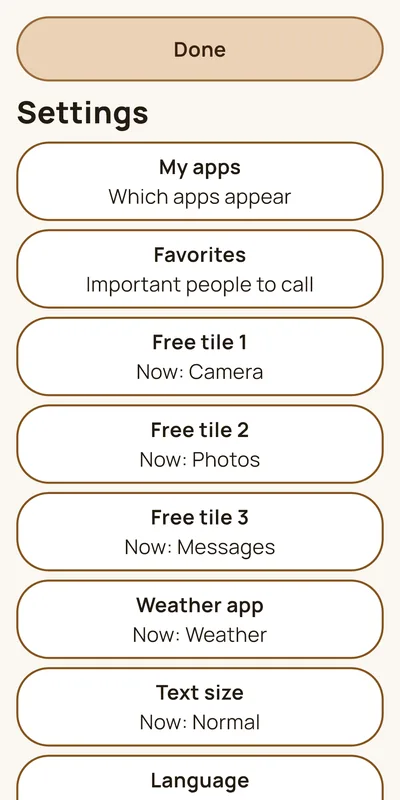
Tap the clock five times within 6 seconds. The question “Change settings?” appears. Choose “Yes, change”. The settings of HEPLANO open, not those of the phone. At the very bottom you find “For relatives”. This protects against accidents. You can share the way as a note: in the setup (last step) or later under “For relatives” and “Share note”. With TalkBack, select the clock and then choose “Change settings” in the actions menu.
What can I set?
My apps, favorites, the three free tiles, weather app, text size (Normal, Large, Very large, Extra large), language, the form of address (“Sie” or “du”, German only) and the appearance (Light, Dark, High contrast). Under “For relatives” you find the guide to calendar and birthdays, the note, the PIN (optional), the default home screen, the permissions, the alerts on the tiles, the purchase, “Help and contact” and “Legal notice and privacy”.
How do I see more when the text is very large?
With “Normal” and “Large”, all tiles fit on the screen. With “Very large” and “Extra large”, the button “Scroll down” at the bottom leads to the other tiles. It only appears when you have not swiped for two seconds.
What is the PIN for?
It protects the area “For relatives”. It is optional. The PIN has 4 digits. With the eye next to the input you can see the digits. When you set it, HEPLANO shows once a second code with 8 digits in large type. Write it down. If you forget the PIN, tap “Forgot the PIN?” at the PIN prompt and enter the code. The PIN is then removed and you can set a new one. If you also lost the code, you can delete the data of the app in Android (Settings, Apps, “HEPLANO Senior”, Storage, “Clear data”; the names differ by phone). The settings are lost in that case. Only the area “For relatives” asks for the PIN. It is never asked in daily use.
What happens with a new phone?
If the Android backup of your Google account is switched on, your settings (text size, appearance, language, chosen apps, free tiles) and the choice for “My apps” come back to the new phone as soon as you install HEPLANO there. Favorites, PIN and own entries must be set up again. HEPLANO recognizes your purchase through Google Play when you are signed in with the same Google account. Under “For relatives” there is “Check purchase” for this.
How do I buy HEPLANO?
Tap the note on the home screen (“You are testing HEPLANO for … more days”, it appears in the last days of the test) or under “For relatives” tap “Buy HEPLANO”. Google Play then guides you through the purchase. Google Play shows the price.
What happens after the 14 days if I do not buy?
Nothing is locked. HEPLANO stays usable with all features. On the home screen a calm line “Do you like HEPLANO?” appears at the first opening, first at once, after that on Mondays and Thursdays. It leads to a note with the button “Ask a relative”: it creates a ready-made text that you can send to a relative. Relatives see the purchase dialog itself once a day when they open “For relatives”. “Later” closes every note.
I have already bought and I have a new phone.
Install HEPLANO with the same Google account. The app recognizes the purchase by itself. Otherwise tap “Check purchase” under “For relatives”.
Can a relative buy for me?
The purchase belongs to the Google account on the phone. Whoever sets up the phone can buy with its account.
The purchase does not work. What do the messages mean?
• “HEPLANO needs internet to buy.” – Connect the phone to the internet. • “Buying is not possible right now.” – Google Play or the account cannot buy at the moment. Try again later. • “HEPLANO cannot be bought on Google Play right now.” – Try again later. • “Buying only works with the app from Google Play.” – Install HEPLANO through Google Play. • “The purchase did not work.” – Another error occurred. Nothing was charged. Try again later.
Why does my relative end up on the old home screen again?
HEPLANO is only “the” home screen if Android is set that way. There can be two reasons. First: someone chose another home screen in Android, for example in the settings or through a phone update. HEPLANO then shows the note “HEPLANO is not your home screen” with the button “Set home screen”. Second: Android cannot be locked completely. Through the notification bar at the top and the settings of the phone you can reach other apps. HEPLANO cannot prevent that. It helps to hide the buttons for other home screens in Android and to set the PIN.
Contacts or appointments are missing.
In the settings under “For relatives” and “Permissions”, check whether “Contacts” and “Calendar” are allowed.
“Something went wrong” appears.
HEPLANO could not read its saved settings. The setup then starts again. Your purchase is recognized again through Google Play afterwards.
My speed-dial contacts are gone after a restart.
This must not happen. HEPLANO remembers “Important people” through the link to the contact. If the contact was deleted or created again in Android, the link is missing. Choose the person again in the settings under “Favorites”. Please report it to us if it happens without any change to the contacts.
How do I change the text size again?
Tap the clock five times quickly, “Yes, change”, “Text size”.
How do I see the reception and the battery?
At the top of the screen your phone shows the status bar with reception and battery. HEPLANO does not change it.
How do I reset HEPLANO?
Under “For relatives” at the very bottom “Reset”, then “Yes, reset”. All settings, favorites and own entries are deleted. Your contacts and the calendar of the phone stay unchanged.
How do I uninstall HEPLANO?
Like any app: in the phone settings under “Apps” choose “HEPLANO Senior” and “Uninstall”. If it is set as the home screen, first choose another home screen in Android.
How do I get help?
By email to dev@heplano.com. Under “For relatives” there is also the row “Help and contact”.